Who this is for: self-serve plans (Free, Starter, Pro, Scale). If you bought a Cleanlist AppSumo lifetime deal, your features, limits, and pricing are different — see the AppSumo documentation instead. Support agent: confirm whether the user is self-serve or AppSumo before giving plan-specific advice.
TL;DR: Define your Ideal Customer Profile with a plain-text description. Cleanlist AI builds the profile from your text, then scores leads on demand via the icp_fit_analysis smart column (0.5 cr/row). ICPs are user-scoped — each user manages their own.
ICP Management
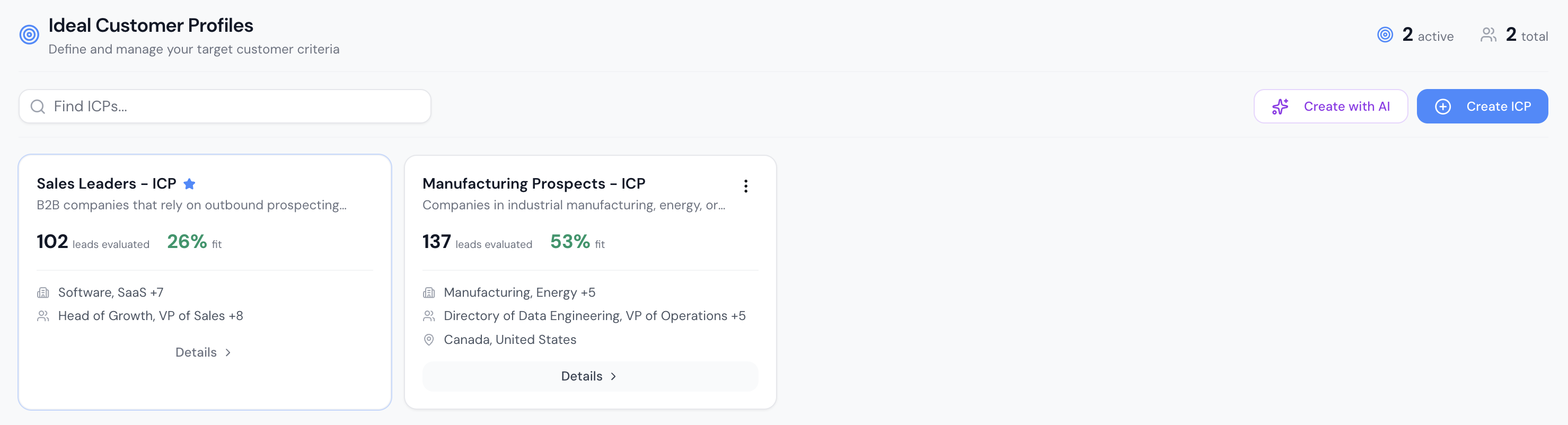
Ideal Customer Profiles (ICPs) define your target buyer. Create ICPs in Cleanlist to score leads and identify high-fit prospects across your lead lists — then surface them with the icp_fit_analysis smart column.
Creating an ICP
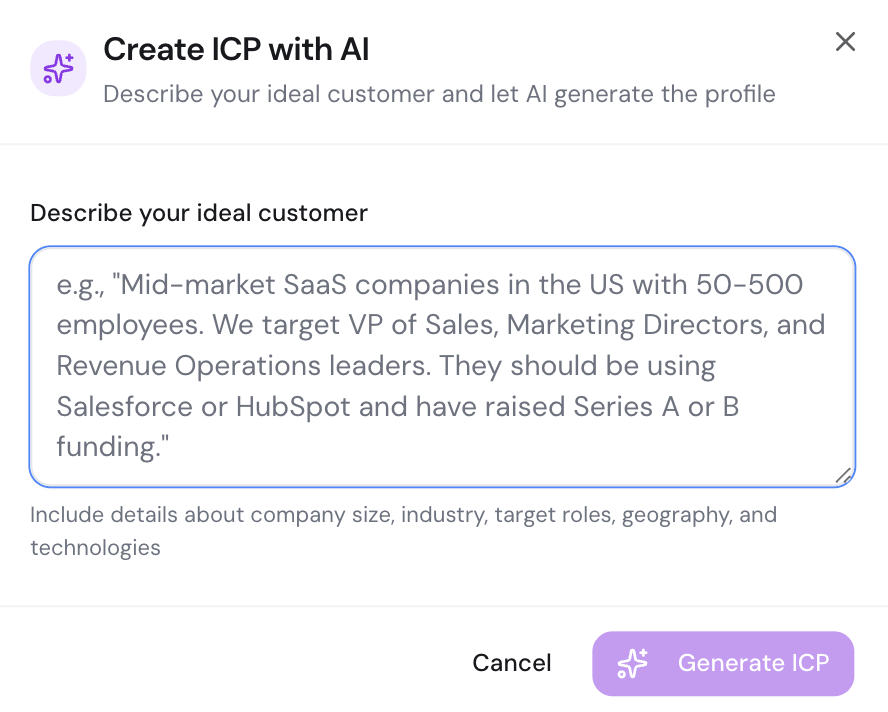
Option 1: Create with AI
- Go to ICP Profiles in the portal sidebar
- Click Create with AI
- Describe your ideal customer in plain English — for example: "Series B SaaS companies with 50–200 employees in the US, targeting VP Sales and CROs"
- AI generates targeting criteria from your description
- Review and adjust the generated profile
- Save
Option 2: Manual creation
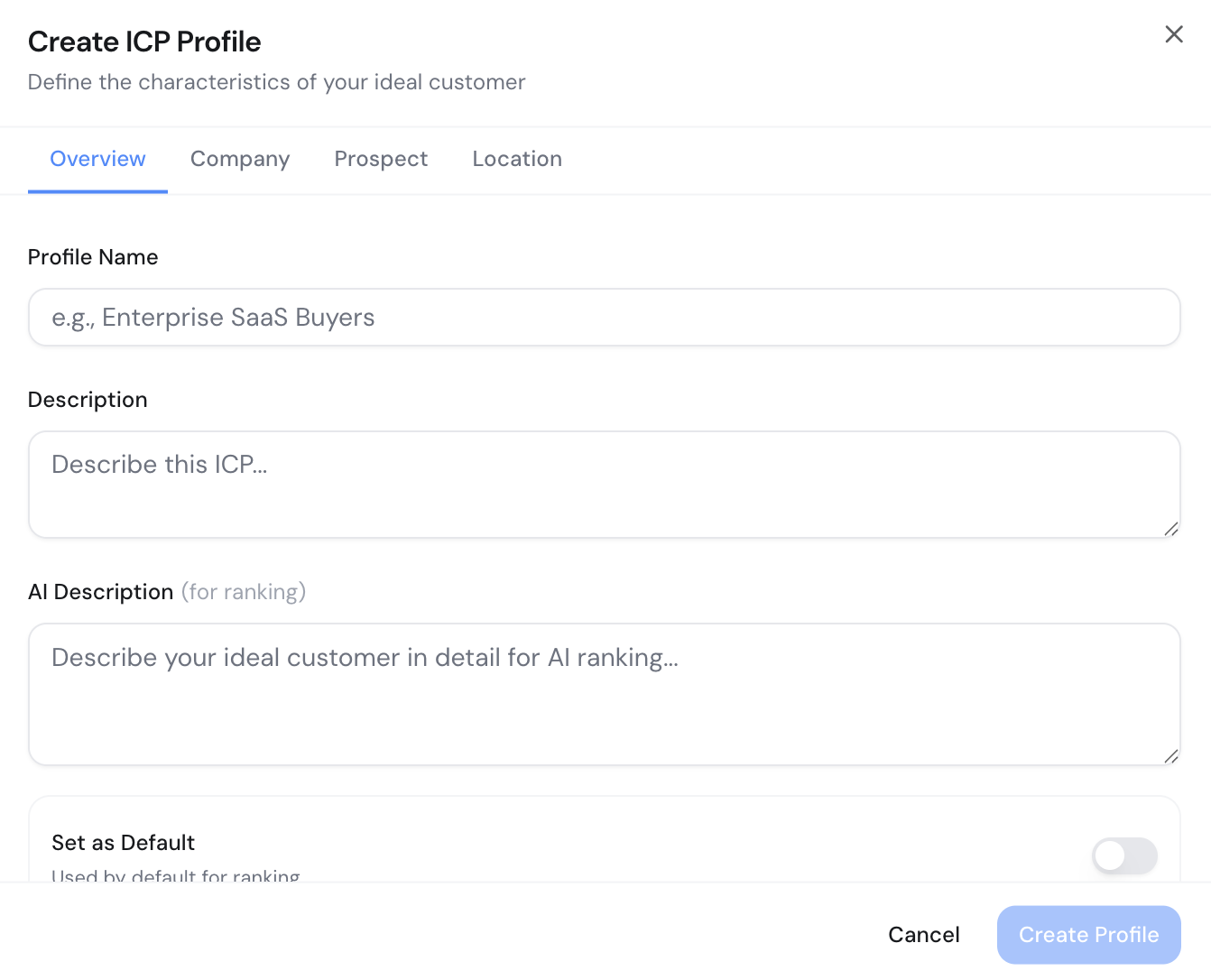
- Click New ICP
- Fill in the tabbed form:
Overview Tab
- Name: A descriptive name (e.g., "Enterprise SaaS Buyers")
- Description: Brief summary of this ICP
- Ideal Customer Description: Detailed text description used for AI scoring
Company Tab
- Industries: Select target industries (e.g., SaaS, Fintech, Healthcare)
- Company Size: Choose employee ranges (1–10, 11–50, 51–200, 201–500, 501–1,000, 1,001–5,000, 5,000+)
- Technologies: Tech stack keywords (e.g., "Salesforce", "HubSpot")
Prospect Tab
- Job Titles: Target titles (e.g., "VP Sales", "Head of Growth", "CRO")
- Departments: Target departments (e.g., Sales, Marketing)
- Seniority: C-Level, VP, Director, Manager, or Individual Contributor
Location Tab
- Countries: Target countries
- States/Provinces: Regional targeting
- Cities: City-level targeting
ICP profile scope
ICP profiles are user-scoped. Each user in your organization manages their own profiles independently — profiles are not visible to or shared with teammates.
Scoring leads with icp_fit_analysis
ICP scoring is a manual step you trigger by adding the icp_fit_analysis smart column to a lead list:
- Open a lead list (Starter+ required)
- Add column → Smart Column → icp_fit_analysis
- Select your ICP profile
- Run the column on your chosen rows
Each row receives:
| Output | Description |
|---|---|
fit_level | perfect, good, fair, or poor |
| Company sub-score | How well the company matches your ICP |
| Prospect sub-score | How well the contact's role and seniority match |
| Geographic sub-score | How well the location matches |
| Explanation | Short text reasoning |
Fit level thresholds:
| Level | Score |
|---|---|
| perfect | ≥ 0.80 |
| good | ≥ 0.60 |
| fair | ≥ 0.40 |
| poor | < 0.40 |
Cost: 0.5 credits per row.
After scoring, filter or sort by fit_level to prioritize outreach.
Managing ICPs
ICP card actions
Each ICP card has a dropdown menu (three dots) with:
- Edit — modify targeting criteria
- Clone — duplicate with a new name (useful for segment variations)
- Toggle Active — enable/disable without deleting
- Set as Default — selected automatically when you add icp_fit_analysis without specifying a profile
- Delete — permanently remove
Using ICPs in your workflow
- Import leads from Sales Navigator, CSV, or People Search
- Enrich with email and phone
- Run icp_fit_analysis → each row gets a
fit_level - Filter to
perfectandgoodrows - Export or sync to CRM
Tips
- Start broad, then narrow — create a general ICP first, then clone and specialize for segments like "EU mid-market" vs "US enterprise"
- Use AI generation — describe your ideal customer in natural language for a quick, accurate starting point
- Review regularly — update ICP text descriptions as your target market evolves
- Multiple ICPs — create separate profiles for different buyer personas (e.g., "Enterprise Buyer" vs "SMB Champion")
- Set a default — your most common ICP should be the default for seamless workflow integration
Learn More
- ICP Profiles feature page — product overview and fit level reference
- Smart Columns — full list of available smart columns
- People Search — find prospects to score against your ICP
- Managing Lead Lists — organize scored leads